
How to add users and adjust their settings
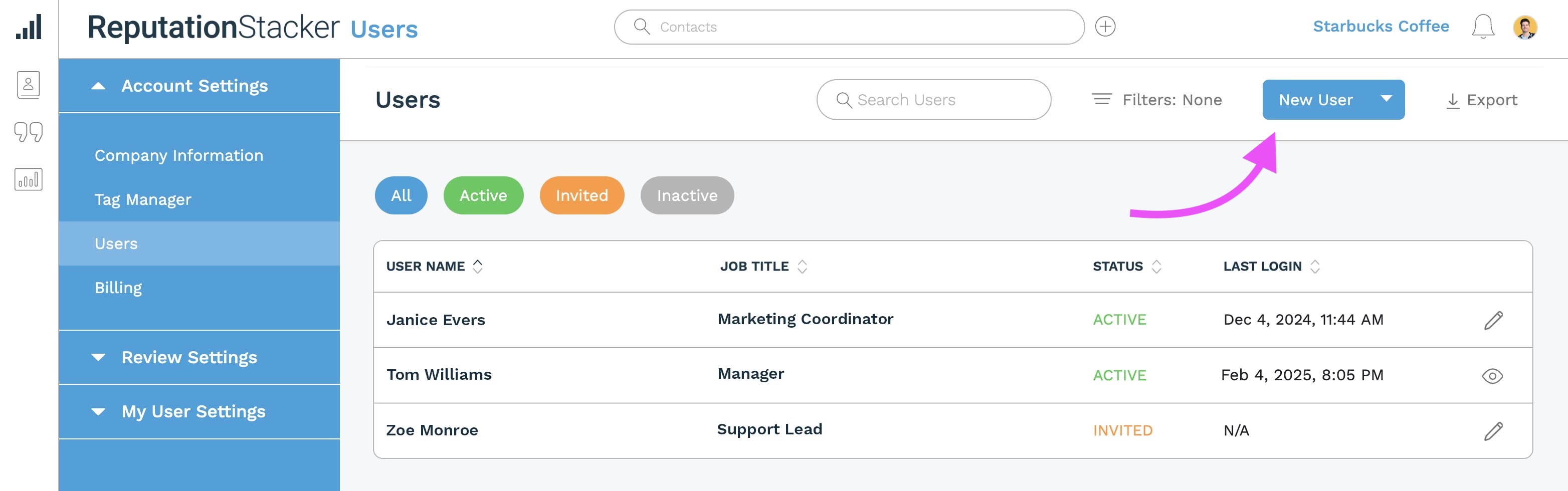
To add additional users to your account - or to adjust their settings (including account permissions and notification preferences) - go to Settings > Account Settings > Users and click the "New User" button at the top of the page:
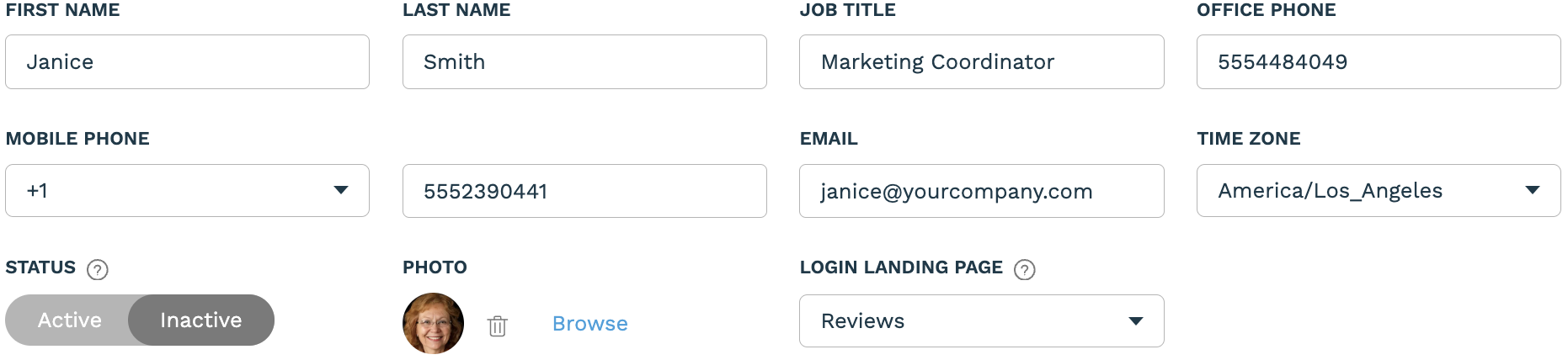
When you do this a new user modal will appear, in which you'll need to include at least a first name, last name and email address, but we recommend filling out the fields as completely as possible:
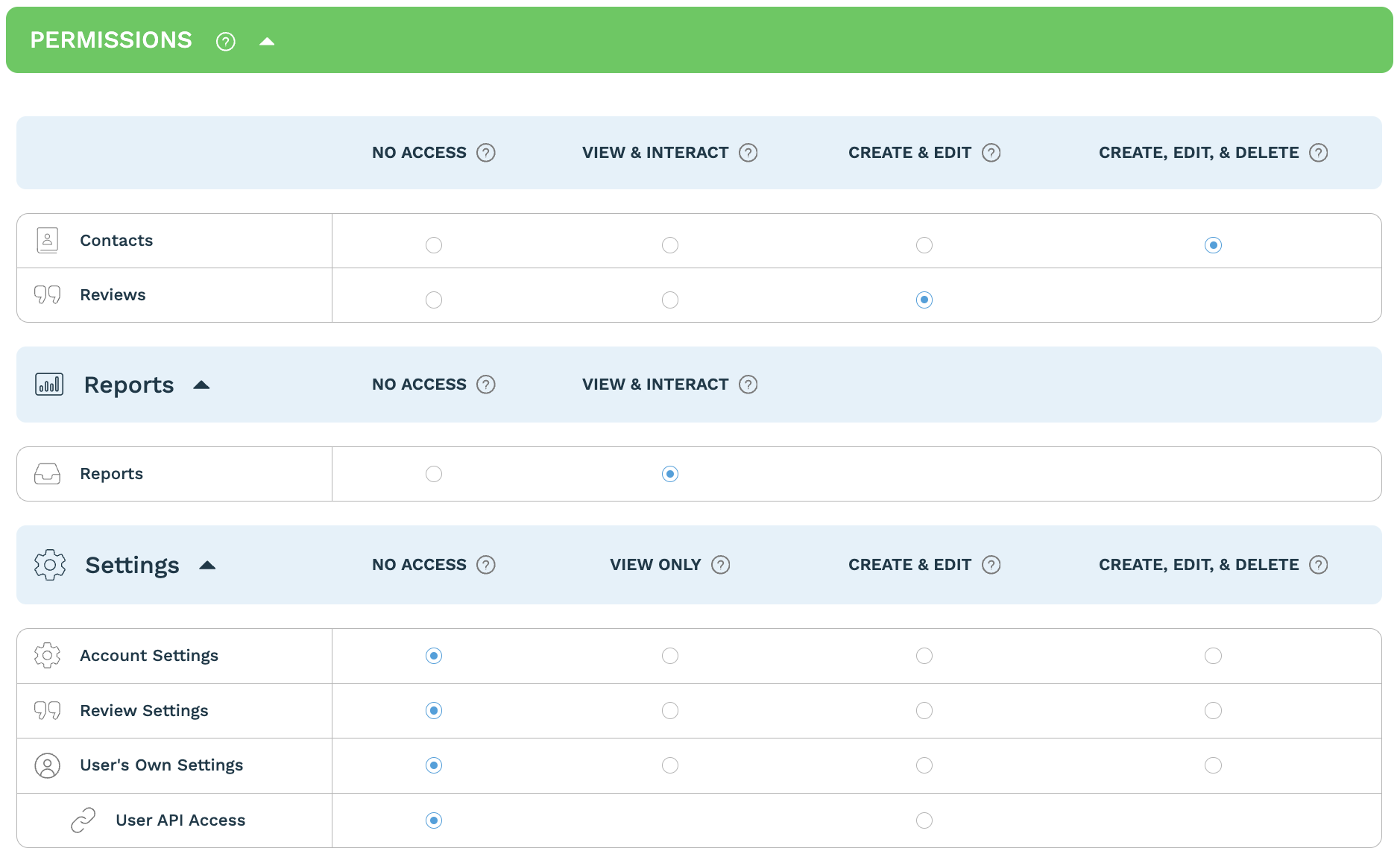
Below this you'll find the "Permissions" section. This is where you can set which parts of ReputationStacker the user can access, and what they're allowed to do on each page:
The next section is "Notifications", where you can set notifications preferences for the user:
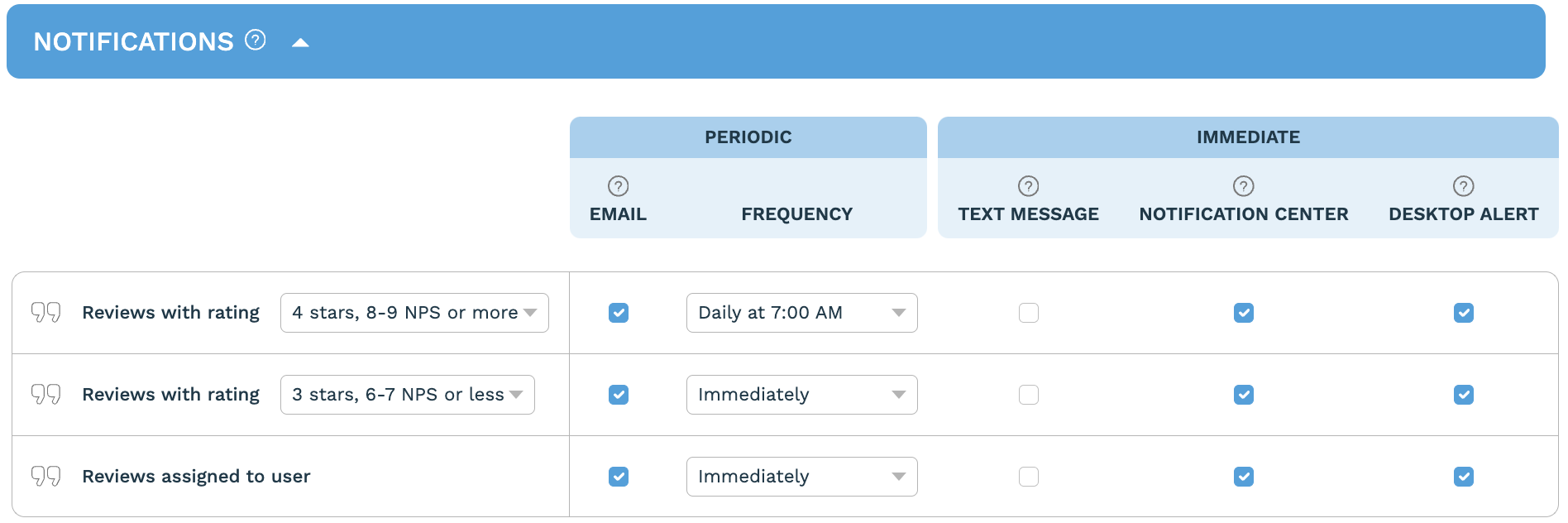
Notifications are only sent regarding review profiles that the user has access to (as set in each review profile's Review Profile Settings > Visible To).
Also note that if you turn on text message notifications:
- You must have a phone number active and verified in the review profile(s) that you want to receive text message notifications for.
- Text message notifications will consume text message credits for applicable review profiles.
Once you have your user settings adjusted, click the "Save" button at the bottom of the modal. This will send an email to the user containing a link to set a password and login to their account.
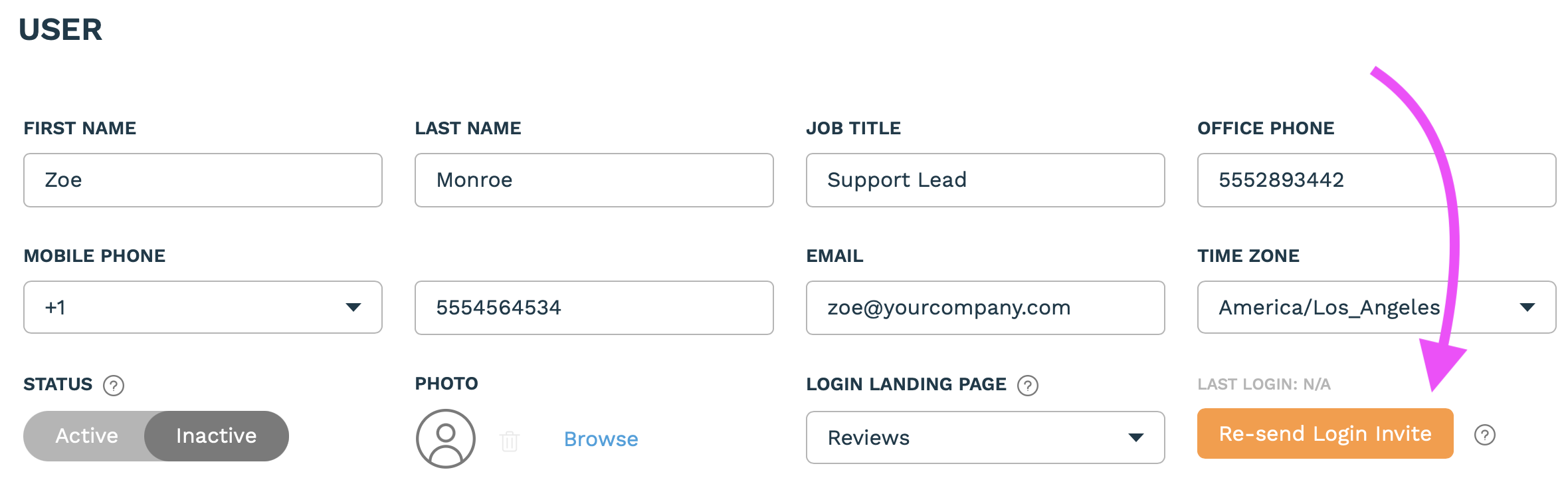
In the users table you can see which of your users are active, inactive, or invited. If a user has been invited but hasn't logged in yet, you can re-send the "set password" email to them by clicking the pencil icon on the right side of the page and in the user settings modal clicking the "Re-Send Login Invite" button:
To delete a user, click the pencil icon for the applicable user in the users table, and in the user settings modal scroll down to the bottom, click the dropdown next to the "Save" button, and select the "Delete User" option.